Image Search Techniques: Complete Guide to Finding Images
IMAGE SEARCH TECHNIQUES

Master Image Search Techniques and find the right image faster.

A practical visual guide to image search techniques — from basic keyword searches to reverse image search, visual search, advanced operators, filters, source discovery and image verification.

Explore: what image search is · how each method works · step-by-step techniques · when to use each method
minimalist mountain wallpaper 4k
Better queryMore precise results
Reverse searchSearch from an image
VerifyCheck the original source
01 / Foundation

What is image search?

Image search is the process of finding images online using text, an existing image, visual clues, filters or advanced search commands.

THE BASIC IDEA

There is more than one way to search for an image.

If you know the name of what you want, use keywords. If you already have an image, use reverse image search. If you can see a product, place or object but do not know its name, visual search can help. Filters and operators then make the results more precise.

METHOD 01

Text → Image

Describe the image with specific keywords.

METHOD 02

Image → Similar

Use an image to find visually related results.

METHOD 03

Image → Source

Trace an image back to useful pages and sources.

METHOD 04

Search → Refine

Use filters and operators to remove noise.

02 / Image Search Techniques

Image Search Techniques:
the complete method library.

Each technique solves a different search problem. Pick the method based on what information you already have.

Keyword Image Search

Build a descriptive query using the subject, location, style, color, year, orientation and other useful details.

Best for starting from zero

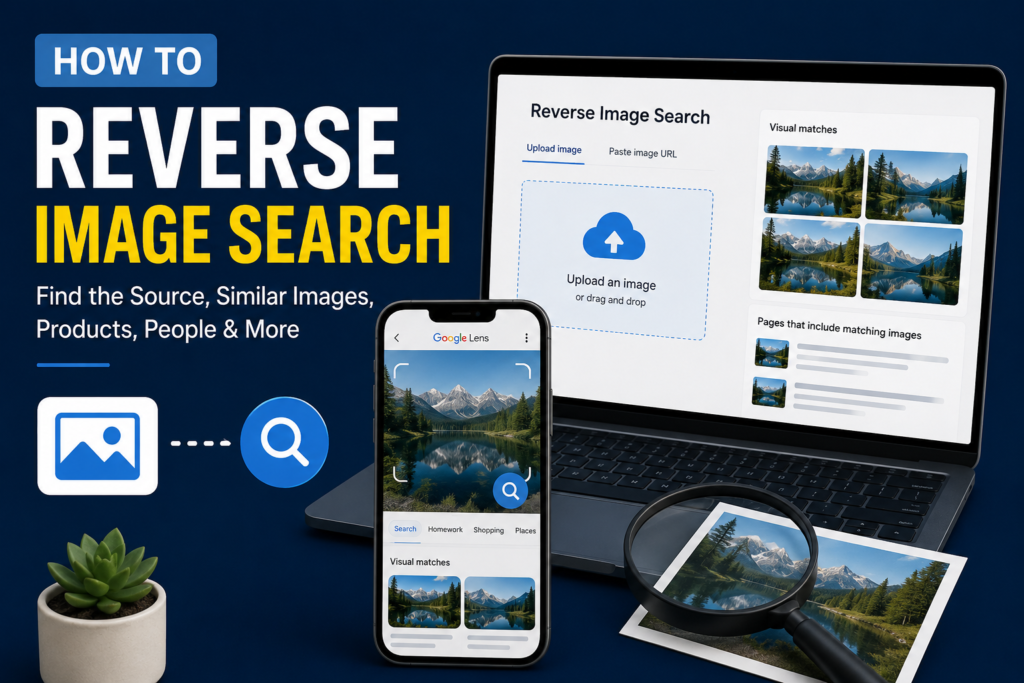
Reverse Image Search

Upload an existing image or provide an image reference to discover similar visuals, pages and possible sources.

Best for existing images

Visual Search

Search using things visible in an image, such as products, objects, landmarks, clothing, plants or logos.

Best for unknown objects

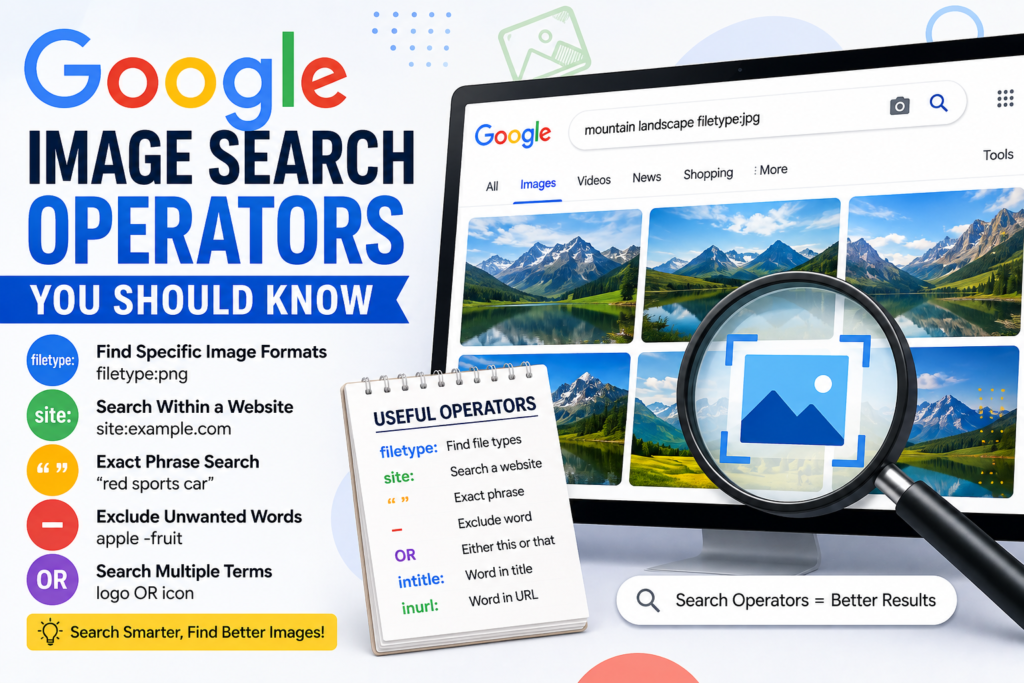
Search Operators

Use exact phrases, site restrictions, file types and exclusions to create highly focused searches.

Best for precision

Image Filters

Narrow results by size, color, type, aspect ratio, freshness and available usage-related options.

Best for large result sets

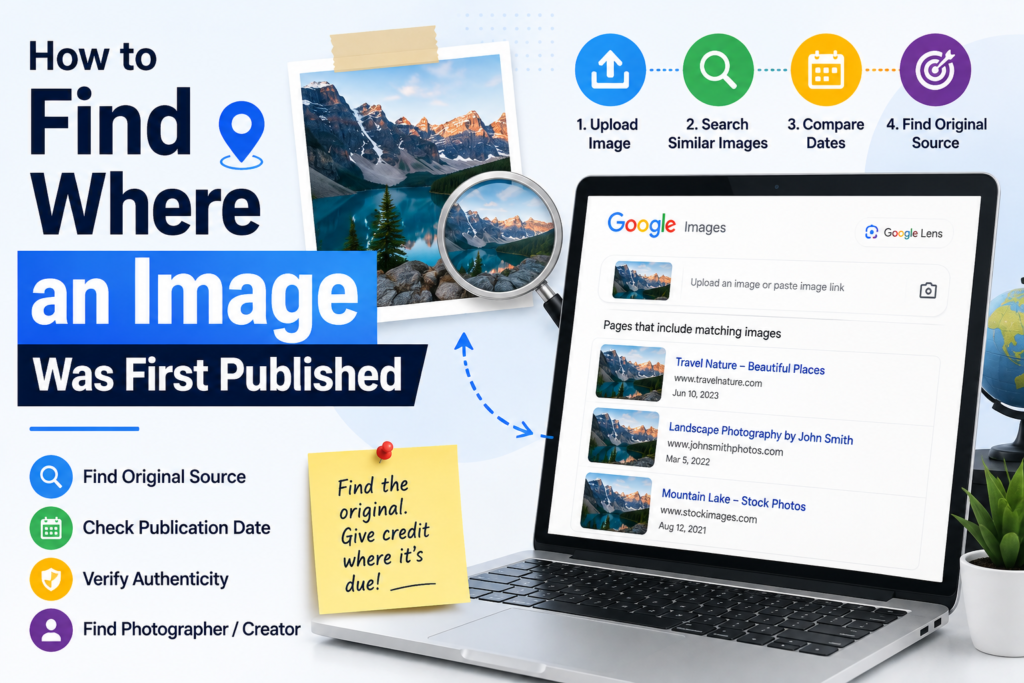
Source & Origin Search

Investigate where an image appeared, who published it, when it was published and whether it is the original.

Best for verification

Product Image Search

Use product photos to discover product names, similar products, retailers, models or alternatives.

Best for product discovery

Screenshot Search

Crop the useful part of a screenshot and use it as a visual starting point instead of searching the entire screen.

Best for screenshots

People & Place Search

Combine names, locations, events and distinctive visual clues to investigate an unfamiliar photo.

Best for identification clues
03 / Where to search

Where can you search
for images?

Different image sources are useful for different goals. Use search engines for discovery, visual-search tools for identification, and image libraries when you need a specific kind of asset.

IMAGE SEARCH
GENERAL IMAGE SEARCH

Google Images

Search billions of indexed images using keywords, filters and related-image features. Google also provides image details and, where available, licensing information.

Best for: broad discovery and everyday image searches
VISUAL DISCOVERY
INSPIRATION & DISCOVERY

Pinterest

Excellent for exploring visual ideas, styles, interiors, fashion, recipes, design concepts and related images through a highly visual feed.

Best for: inspiration, ideas and visual exploration
VISUAL SEARCH
VISUAL IDENTIFICATION

Bing Visual Search

Upload an image or use a visual reference to identify objects and text, find similar images and explore related information.

Best for: reverse and visual image searches
PHOTOGRAPHY
FREE PHOTOGRAPHY

Unsplash

Useful for high-quality photography across nature, travel, business, technology, people, backgrounds and many other subjects.

Best for: clean, high-quality photographic images
STOCK ASSETS
PROFESSIONAL STOCK

Adobe Stock

A large professional library of photos, illustrations, vectors, videos and templates with licensing options for creative projects.

Best for: professional and commercial stock assets
OPEN MEDIA
FREE & LICENSED MEDIA

Wikimedia Commons

A large repository of freely licensed and public-domain educational media, including photographs, diagrams, maps and historical images.

Best for: research, education and openly licensed media
FREE PHOTOS
STOCK PHOTOGRAPHY

Pexels

Search a large collection of free stock photos and videos across common categories such as business, travel, people and nature.

Best for: free stock-style photography
MEDIA LIBRARY
FREE MEDIA

Pixabay

Explore photos, illustrations, vectors and other media for creative projects, with license terms that should still be checked for your intended use.

Best for: quick access to free visual assets
DESIGN ASSETS
DESIGN RESOURCE

Freepik

Useful for illustrations, vectors, templates, photos and design resources, including free and premium assets.

Best for: design resources and graphics
PHOTO COMMUNITY
PHOTO ARCHIVE

Flickr

A large photo-sharing community where you can discover photography, collections and images from individual photographers.

Best for: photography collections and archives

Which image source should you use?

Start with Google Images when you are looking for something specific. Use Pinterest when you are exploring ideas. Try Bing Visual Search when you already have an image. Use Unsplash, Pexels or Pixabay for free photographic resources, Adobe Stock or Freepik for professional design assets, and Wikimedia Commons for research and freely licensed media. Always check the individual image’s license and usage conditions before reuse.

03 / Step-by-step guides

How to use Image Search Techniques
step by step.

Follow these workflows instead of guessing. Each method starts with what you have and ends with a way to verify the result.

TECHNIQUE 01

Keyword Image Search

Use this when you know what the image should contain but do not already have the image.

STEP 01

Start with the subject

Write the main object, person, place or scene you want.

STEP 02

Add distinguishing details

Add color, style, location, era, orientation or context.

STEP 03

Run the search

Review the first results and identify what is still too broad.

STEP 04

Refine the query

Replace vague words with more specific descriptions and use filters.

Examples in action:
  • Instead of “car”, try “1960s red vintage Porsche side profile studio photo”.
  • Instead of “house”, try “modern mid-century living room interior natural light”.
  • Instead of “flower”, try “macro photography of purple orchid with dew drops”.
TECHNIQUE 02

Reverse Image Search

Use this when you already have a photo, screenshot, graphic, product image or other visual reference.

STEP 01

Choose the best image

Use the clearest version with enough visual detail.

STEP 02

Upload or provide it

Use the visual-search or reverse-search feature available to you.

STEP 03

Study the matches

Compare similar images, pages, captions and contextual clues.

STEP 04

Trace the source

Open useful results and verify the publisher, date and context.

Examples in action:
  • Finding originals: Upload a low-quality, cropped meme to find the high-resolution original image.
  • Spotting fakes: Upload a social media profile picture to check if it’s a stolen stock photo.
  • Crediting artists: Search an uncredited piece of digital art to locate the original creator’s portfolio.
  • Cropping tip: Try both the full image and a crop focused on the most distinctive object for different matches.
TECHNIQUE 03

Visual Search

Use visual clues when you do not know the exact name of an object, product, landmark or style.

STEP 01

Identify the visual clue

Pick the object, product, building, logo or distinctive feature.

STEP 02

Crop the subject

Remove unrelated background where possible.

STEP 03

Search visually

Use a visual-search tool rather than relying only on text.

STEP 04

Compare candidates

Look for consistent visual features across multiple results.

Examples in action:
  • Nature identification: Photograph an interesting plant on a hike, crop to the leaf, and identify the species.
  • Interior design: Spot a vintage lamp in a cafe, snap a photo, and find similar styles available online.
  • Brand discovery: See a logo you don’t recognize on a shirt, crop just the logo, and visually search to find the brand.
TECHNIQUE 04

Search Operators

Use operators when ordinary image searches return too many unrelated pages or when you need results from a specific website.

STEP 01

Write the core query

Start with the subject and the most important description.

STEP 02

Add an operator

Use exact phrases, site restrictions, file types or exclusions.

STEP 03

Review the narrower set

Check whether the operator removed irrelevant results.

STEP 04

Combine carefully

Add only operators that solve a specific problem.

Examples in action:
  • Exclusions: apple -fruit (finds images of the tech company, intentionally excluding the fruit).
  • Specific sites: site:nasa.gov "James Webb" (only returns official space telescope images from NASA’s domain).
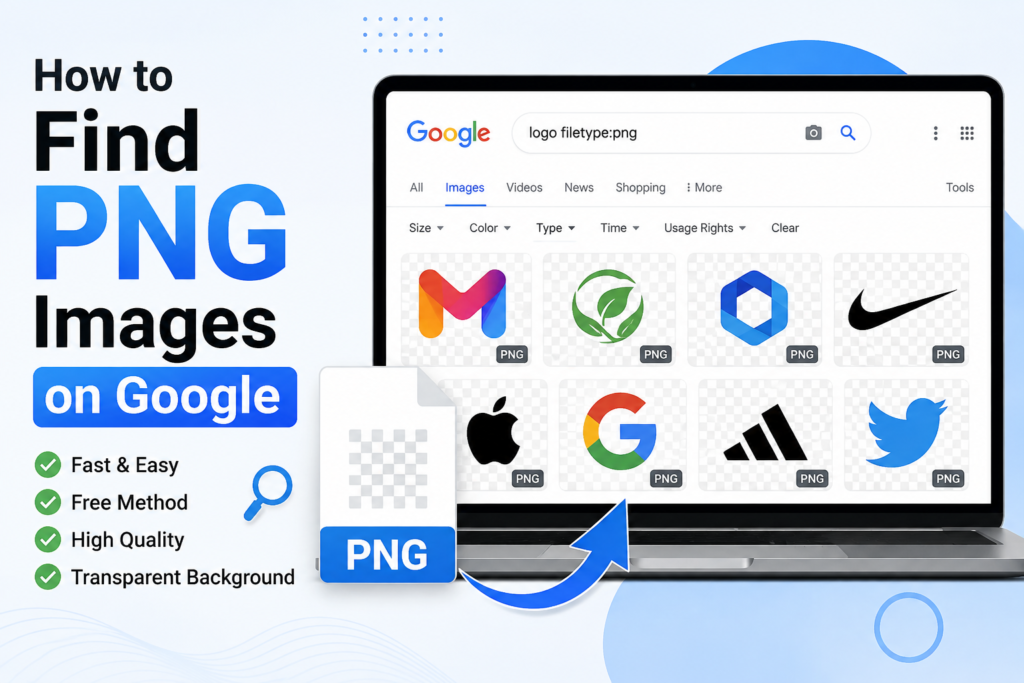
  • File types: filetype:png "play button" (finds transparent icons specifically for video interfaces).
  • Exact phrases: "New York skyline 1950" (forces the search engine to match that exact string of words).
TECHNIQUE 05

Image Filters

Use filters after the initial search to reduce a large collection of broadly relevant images.

STEP 01

Search broadly

Start with a reasonably specific query.

STEP 02

Choose the required size

Think about screen, web, presentation or print requirements.

STEP 03

Filter visual attributes

Use color, type and aspect ratio when available.

STEP 04

Check usage separately

Verify actual licensing on the source page before reuse.

Examples in action:
  • Website backgrounds: Search “forest” → Filter by: Large size, Landscape orientation.
  • Presentation graphics: Search “coffee cup” → Filter by: Illustration type, Transparent color.
  • Specific aesthetics: Search “cityscape” → Filter by: Black and white or select a specific dominant color palette.
TECHNIQUE 06

Find the Original Source

Use this when you need to know where an image came from rather than simply finding another copy.

STEP 01

Reverse-search the image

Look for matching or visually similar versions.

STEP 02

Open promising pages

Look beyond image thumbnails and inspect the actual page.

STEP 03

Compare dates & context

Check captions, publication dates, credits and surrounding information.

STEP 04

Identify the strongest source

Prefer authoritative or creator-controlled sources when evidence supports them.

Examples in action:
  • Fact-checking news: A viral photo seems fake → reverse search → sort by oldest → discover it’s actually from a 2014 movie set.
  • Tracing quotes: A beautiful wallpaper has no credit → reverse search → trace it back to a photographer’s 2010 Flickr upload.
  • Data verification: Find a chart with startling statistics → reverse search → locate the original academic PDF report it was cropped from.
TECHNIQUE 07

Product Image Search

Use a product photograph to identify an item or discover visually similar products.

STEP 01

Crop the product

Keep the item prominent and remove distracting surroundings.

STEP 02

Run visual search

Search the product image using a visual-search feature.

STEP 03

Compare shape & details

Check logos, buttons, materials, dimensions and design features.

STEP 04

Verify the model

Use product pages or manufacturer information to confirm the match.

Examples in action:
  • Finding models: Crop a photo of a great sneaker to just the shoe to find the exact brand and model number.
  • Finding alternatives: Visually search a celebrity’s designer sunglasses to find cheaper “dupe” alternatives.
  • Replacement parts: Photograph a broken gear from an old appliance to find the exact replacement part online.
TECHNIQUE 08

Screenshot Image Search

A screenshot can contain menus, text and other noise. Cropping it intelligently often produces much better results.

STEP 01

Crop the useful area

Keep the image, object or distinctive visual detail.

STEP 02

Remove interface clutter

Exclude browser bars, buttons and unrelated text.

STEP 03

Try visual search

Use the cropped screenshot as the image input.

STEP 04

Use text clues too

If visible text is distinctive, combine it with the visual result.

Examples in action:
  • Movie identification: Screenshot a movie scene, crop out black bars and subtitles, and search to find the film’s title.
  • Tech support: Screenshot an obscure error popup, crop tightly to the error icon/code, and find relevant tech support forums.
  • Location scouting: Screenshot a map or drone video, crop to a distinctive building layout, and identify the city or landmark.
04 / Advanced precision

Operators and filters
that sharpen results.

These techniques are especially useful after you have learned the basic search workflow.

Useful search operators

Syntax can vary by search engine, so treat these as common examples and verify current support in the tool you use.

"exact phrase"

Exact phrase

Keep a phrase together in the search.

site:example.com

Specific site

Focus results on one domain.

filetype:jpg

File format

Target a format where supported.

keyword -term

Exclude words

Remove an unwanted concept.

Filters to try

Use filters based on the final purpose of the image, not simply because they are available.

Size

Large, medium or other available dimensions.

Color

Dominant color or monochrome options.

Type

Photo, illustration, animated image and more where offered.

Aspect ratio

Portrait, landscape, square or wide imagery.

Freshness

Recent or date-related filtering where available.

05 / The ideal workflow

One image search.
Five smart stages.

When a search is difficult, move through these stages instead of repeating the same query.

01

Describe

Turn your goal into useful search words.

02

Search

Start with the most direct method.

03

Refine

Add filters, details or operators.

04

Compare

Evaluate several candidate images.

05

Verify

Check source, context and usage.

06 / Which technique should I use?

Start with the problem,
not the tool.

The quickest technique depends on what you know before you begin the search.

I know what I want

Keyword search

Use descriptive text when you know the subject but do not have an example image.

Subject → details → style → location → filters
I already have an image

Reverse image search

Use the existing image to discover related images, pages or possible sources.

Image → upload → matches → source check
I don’t know what it is

Visual search

Search using the visual object itself when its name is unknown.

Crop → visual search → compare → identify
Too many results

Filters & operators

Reduce irrelevant results using dimensions, colors, domains, phrases and exclusions.

Query → filter → operator → review
I need the original

Source discovery

Trace matching results and inspect pages, dates, credits and context.

Reverse search → compare → source → verify
I want to reuse it

License verification

Finding an image does not automatically grant permission to use it.

Find → open source → read license → comply
07 / Final verification

Before you trust
an image result.

A strong image-search technique ends with verification. A visually similar result is not automatically the correct or original image.

Image search verification checklist

Does it actually match?

Check the subject, details, context and dimensions rather than judging only the thumbnail.

Is there a higher-quality version?

Look for the original or a better-resolution copy on the source page.

Who published it?

Identify the creator, photographer, organization or publisher when possible.

What is the context?

Read captions, dates and surrounding page information.

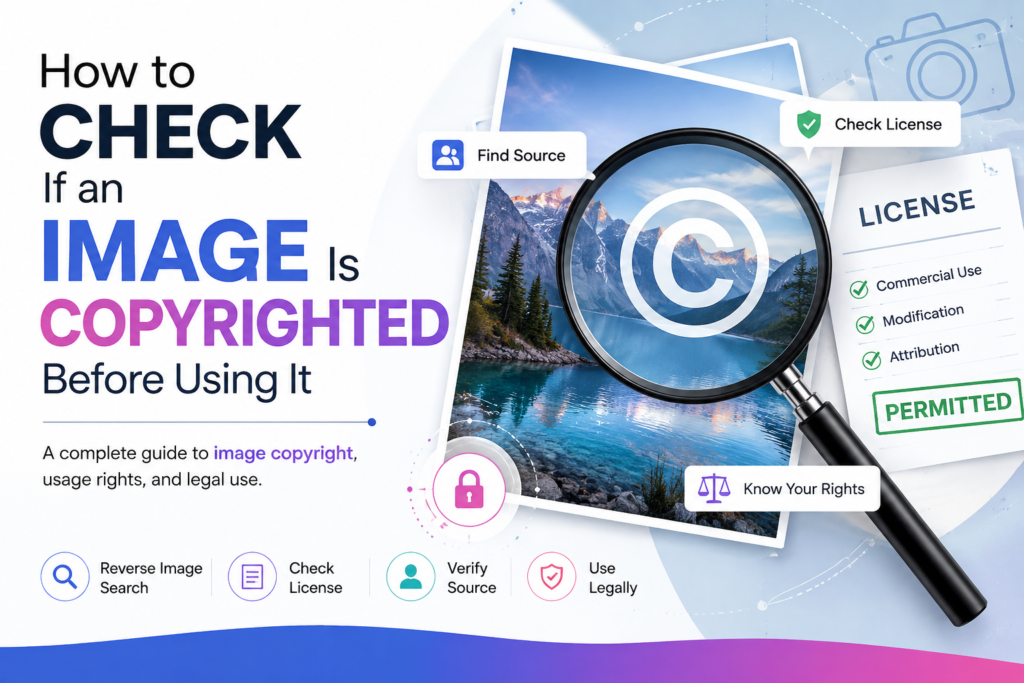
Can it legally be reused?

Check the actual license, permission and attribution requirements.

Finding an image is only half the job.

The better workflow is to find the right image, understand where it came from, verify that it is actually what you need, and check whether you have permission to use it.

!

Image search and copyright are different things.

Search engines help you discover images, but a search result does not automatically give you ownership or reuse rights. Always inspect the source page and verify its copyright, license, attribution and usage requirements before publishing or using an image.

Scroll to Top